
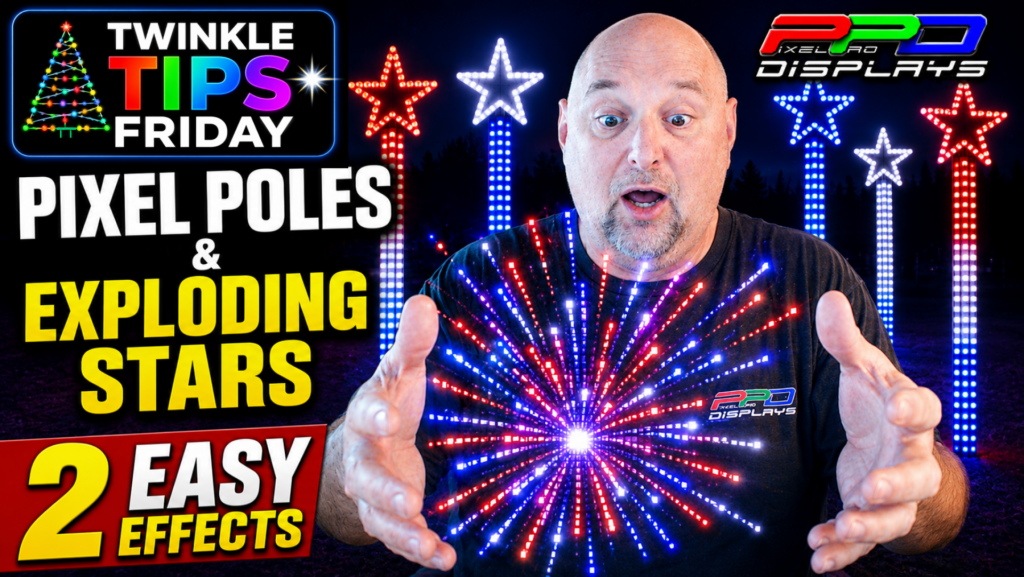
Two Simple Effects That Add Motion and Excitement
Pixel Poles and Exploding Stars are some of the most popular props for patriotic displays, but they don't have to be limited to basic animations. With just two built-in xLights effects, you can create eye-catching movement that makes these props feel more energetic and coordinated.
In this week's Twinkle Tips Friday, we're looking at two effects that work especially well together:
- Morph for the Pixel Pole
- Shockwave for the Exploding Star
These aren't complicated techniques. They're simple changes that can make a big difference in the finished look of your sequence.
Why These Two Effects Work So Well Together
A Pixel Pole naturally draws your eye upward. The Morph effect enhances that movement by creating a clean flow from the bottom of the pole to the top.
Once the animation reaches the Exploding Star, the Shockwave effect spreads outward from the center of the prop, creating a bold, energetic burst that complements the movement of the pole.
The result is a smooth transition between the two props that feels intentional and polished.
Sequence the Props as a Group
One tip we share in the video is to apply these effects to a Group Model instead of sequencing each prop separately.
Doing this allows the Pixel Pole and Exploding Star to work together as a single visual element, making the transition between the Morph and Shockwave effects much more natural.
Related Article: How to Use Model Groups in xLights
Morph Effect Tips
The Morph effect is one of the most versatile tools in xLights. While it's commonly used on Mega Trees and matrices, it also works exceptionally well on Pixel Poles.
In this application, it creates a clean upward movement that naturally leads into the Exploding Star.
Related Article: Getting Started with the Morph Effect with New Updates
Bringing Your Exploding Stars to Life
Many people treat Exploding Stars as static props, but adding the Shockwave effect gives them much more personality.
Instead of simply lighting the prop, Shockwave creates expanding motion from the center, making the star feel alive without adding complicated layering.
A few small adjustments to the timing can completely change the feel of the animation.
Related Article: Updated Effects in xLights
Related Video: The Shockwave Effect in xLights
Watch the Complete Tutorial
In this week's Twinkle Tips Friday, we walk through the setup step by step and show exactly how these two effects work together.