Introduction
After our first EZPlayer video, one of the biggest questions we received was: Does Remote Falcon work with EZPlayer? The answer is yes! In fact, setting up Remote Falcon with EZPlayer turned out to be much easier than I expected.
In this guide, we'll walk through connecting Remote Falcon to EZPlayer, choosing which songs your visitors can request, setting when viewer control is available, and testing an actual song request on the display. By the end, you'll have everything you need to start letting visitors interact with your show from their phones.
1. What Is Remote Falcon and EZPlayer?
Before connecting the two, it helps to understand what each one does.
EZPlayer is the show player running your display. It plays your sequences, manages playlists and schedules, and sends the data out to your lights. Once your sequences are prepared and loaded into EZPlayer, it can handle running your nightly show.
Remote Falcon adds a way for the people visiting your display to interact with that show. Visitors can scan a QR code or open your Remote Falcon viewer page on their phone, see the songs you've made available, and request the one they want to watch. That request is then sent to your show player.
When you use Remote Falcon with EZPlayer, the two have different jobs:
EZPlayer = the show player
Remote Falcon = the visitor experience
For example, maybe a visitor really wants to see All I Want for Christmas Is You, but it's buried deep in your playlist. Instead of waiting around hoping it plays, they can select it from your Remote Falcon page. EZPlayer receives that request and can play it after the currently playing sequence finishes.
Remote Falcon offers many more features and customization options than we're going to cover here. For this guide, we're keeping things simple: connect Remote Falcon with EZPlayer, give visitors a selection of songs, and make sure their requests actually play on the display.
2. Prepare EZPlayer for Remote Falcon
Before connecting Remote Falcon, make sure your show is ready to run normally in EZPlayer. Your sequences should already be rendered, and EZPlayer should be pointed to the correct folders for your display.
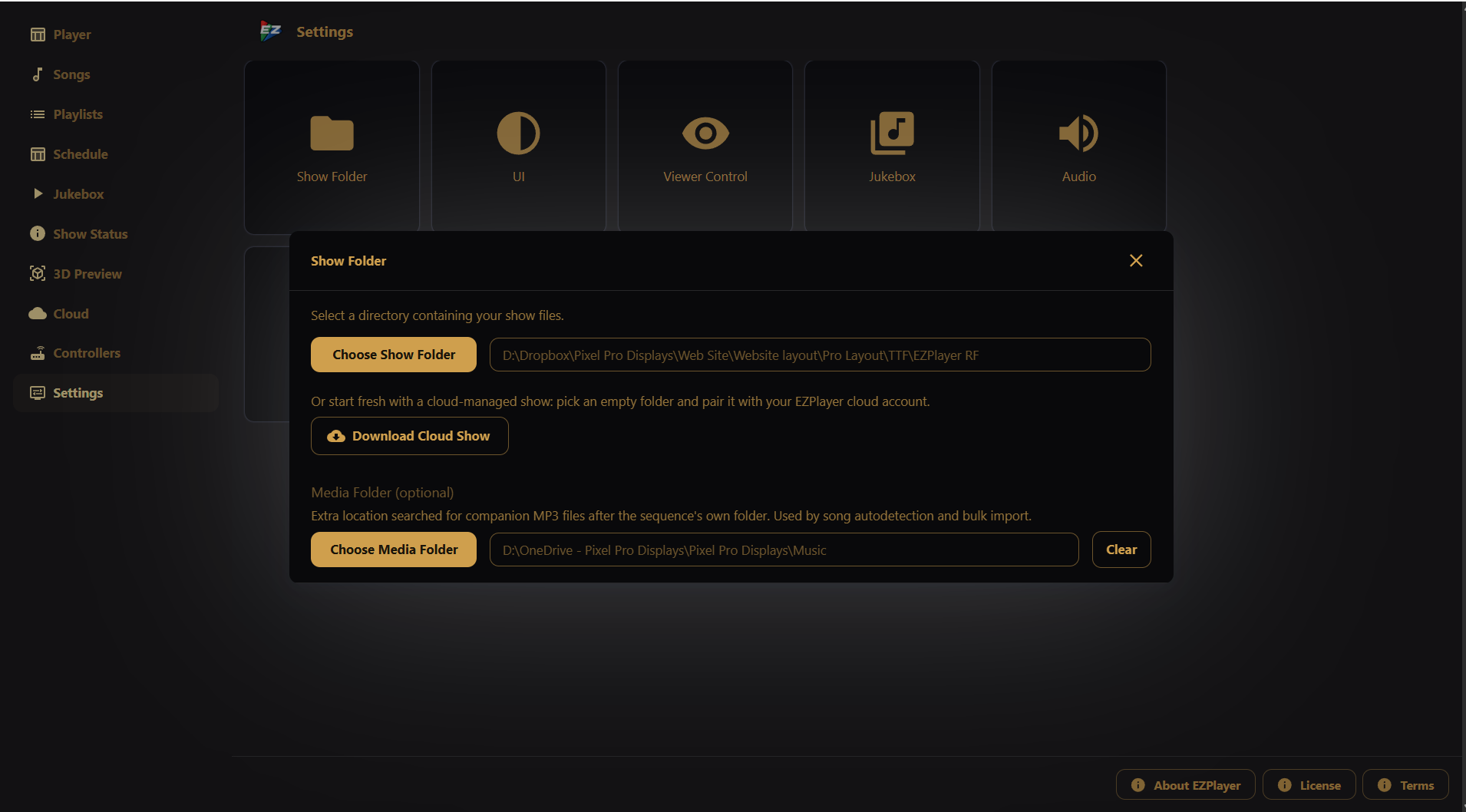
Start by opening Settings and checking your Show Folder. If you keep your audio files in a separate location, you can also use Choose Media Folder to tell EZPlayer where to find your music. This was one of the most common questions after our previous EZPlayer video, and the newer option makes managing music stored outside your show folder much easier.
Adding Your Songs
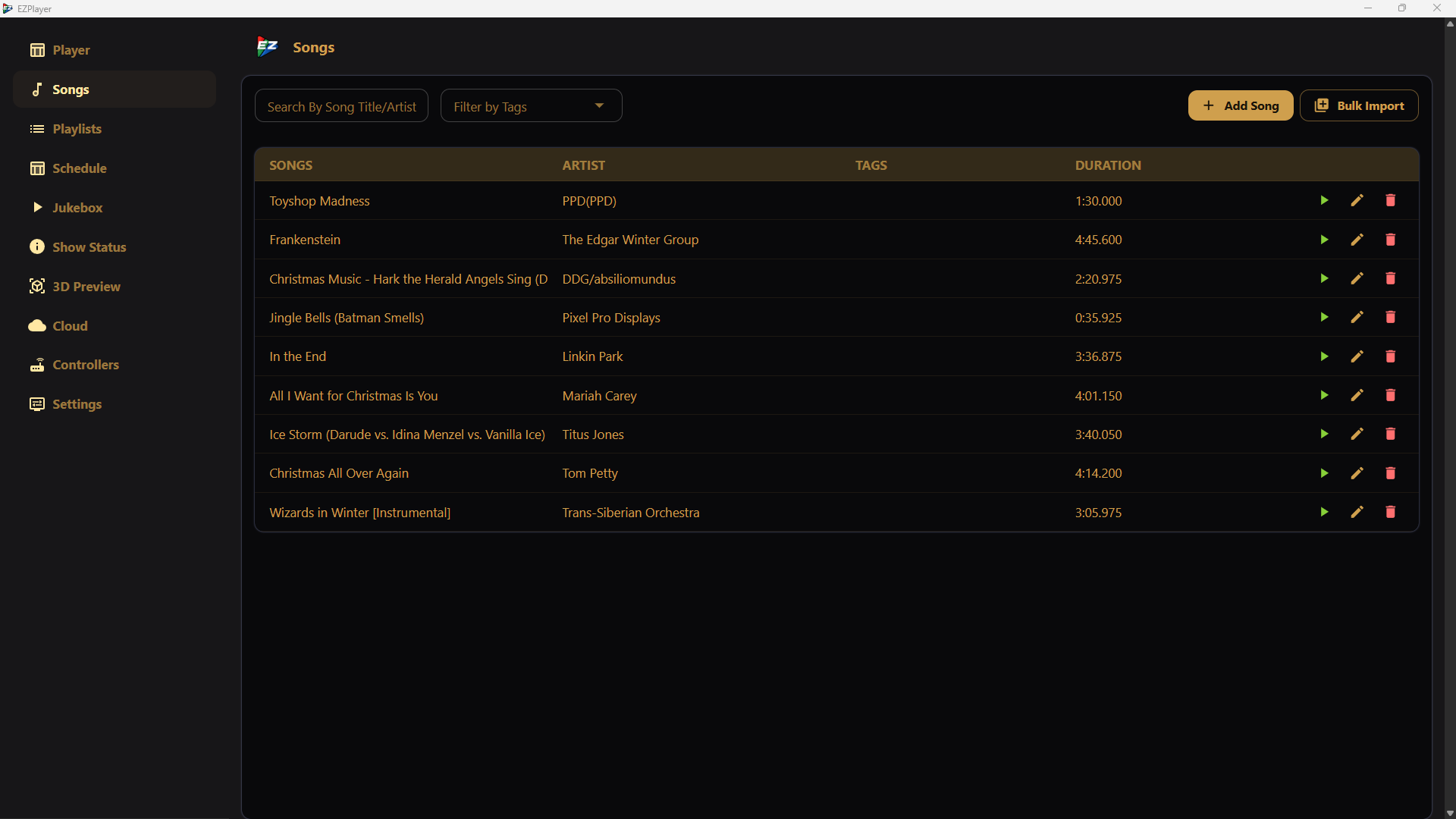
EZPlayer now includes a Bulk Import option that can save quite a bit of time when you're adding multiple sequences. Instead of entering every song individually, select Bulk Import and bring your prepared sequences into EZPlayer together.
During our test, Bulk Import flagged one static sequence because it didn't have a matching MP3. Since a static sequence doesn't necessarily need music, we simply added that sequence manually. At the time of recording, the EZPlayer developers were aware of this issue and were working on improving how Bulk Import handles sequences without audio.
Create Your Remote Falcon Playlist
Once your songs are imported, create the playlist you want to make available to Remote Falcon. For our test, we created a playlist called Fan Playlist Selections.
This playlist doesn't necessarily have to match the playlist you normally run each night. You might have dozens of sequences in your library but only use a smaller selection in your regular show. Remote Falcon gives us the opportunity to make some of those additional songs available for visitors to request without putting every sequence into the nightly rotation.
With your songs imported and your Remote Falcon playlist created, EZPlayer is ready to make the connection.
3. Connect Remote Falcon to EZPlayer
With your songs imported and your playlist ready, it's time to connect Remote Falcon to EZPlayer. Fortunately, this part of the setup is surprisingly simple.
In EZPlayer, go to Settings → Viewer Control. Under Viewer Control Type, select Remote Falcon. You'll notice EZPlayer also has a built-in Viewer Control option in development, but for this tutorial we're sticking with Remote Falcon.
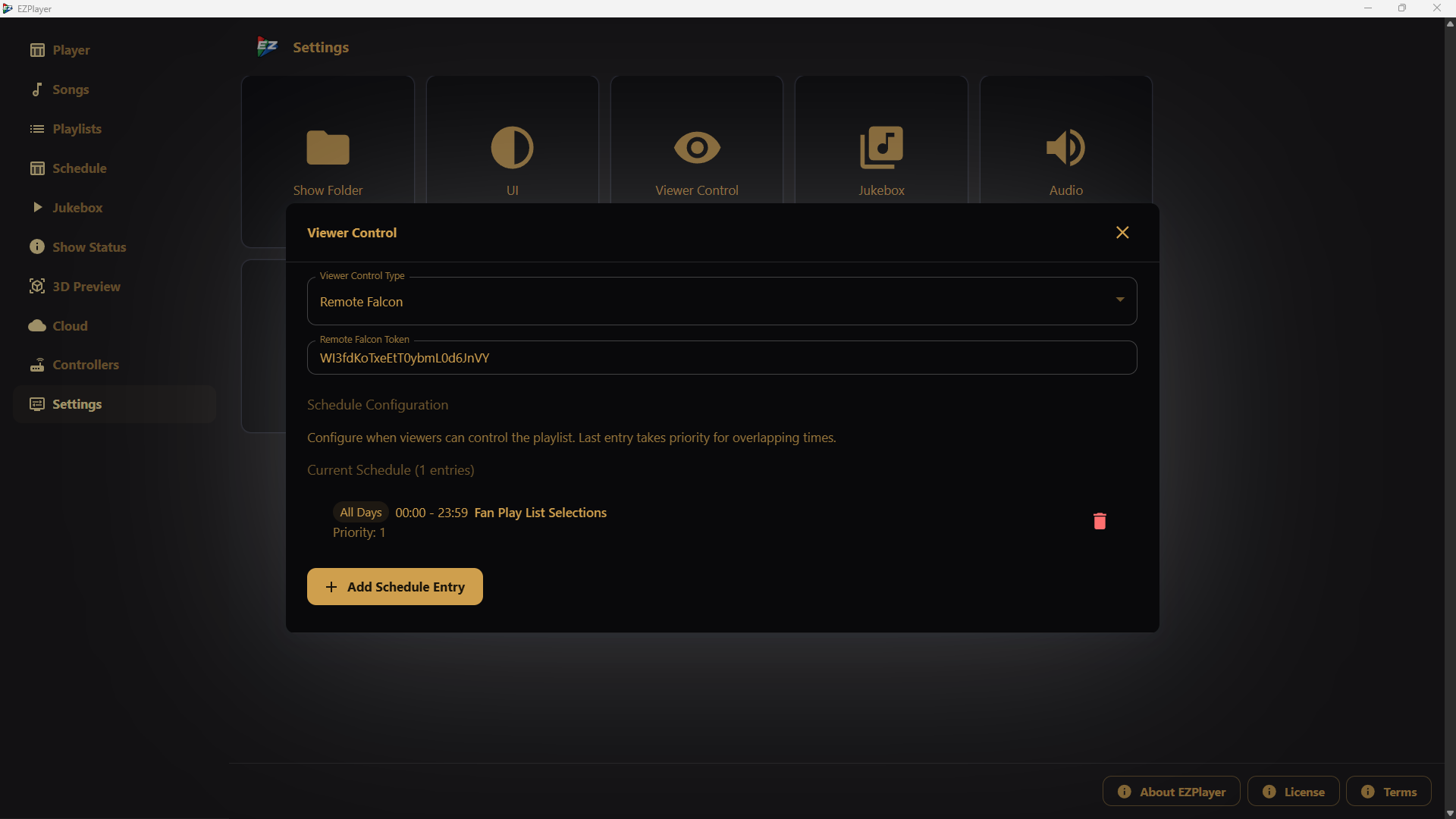
EZPlayer will now ask for your Remote Falcon Show Token. This token is what connects your Remote Falcon account to EZPlayer.
Find Your Remote Falcon Show Token
Head over to RemoteFalcon.com and sign into your account. Once you're on the dashboard:
- Enable Viewer Control using the slider at the top of the page.
- Select Account Settings from the menu.
- Open Account.
- Find Show Token.
- Click Copy Show Token.
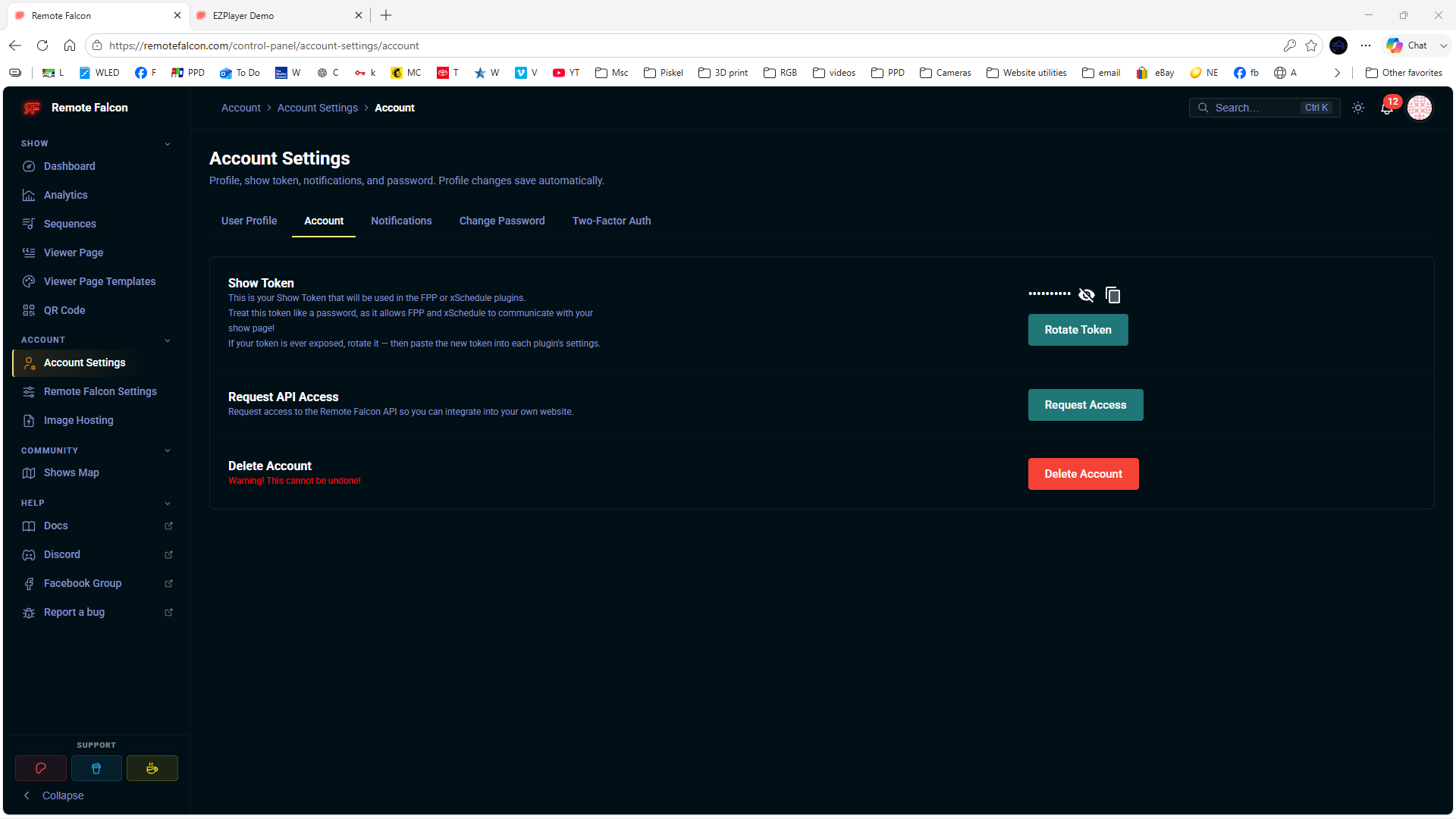
You don't need to manually type or even display the token. Simply copy it, return to EZPlayer → Settings → Viewer Control, and paste it into the Remote Falcon token field.
That's the basic connection complete. Next, we need to tell EZPlayer when Remote Falcon can accept requests and which playlist your visitors are allowed to choose songs from.
4. Choose When and What Visitors Can Request
Once Remote Falcon and EZPlayer are connected, the next step is deciding when visitors can make song requests and which songs they can choose from.
Under Viewer Control, select Add Schedule Entry. This gives you control over the days and times Remote Falcon is available. You can make viewer requests available every day, only on certain days, or during specific hours.
This can be especially useful for displays with heavy traffic. For example, if Friday and Saturday evenings are your busiest times, you may want to limit viewer requests during those hours to help keep cars moving. On slower nights, you could give visitors more freedom to choose what they want to see.
Next, select the playlist you want Remote Falcon visitors to access. In our example, we created Fan Playlist Selections specifically for this purpose. This playlist can contain your regular show songs, additional sequences that aren't in that night's rotation, or a combination of both.
Once you've selected your days, times, and playlist, click Add Schedule Entry.
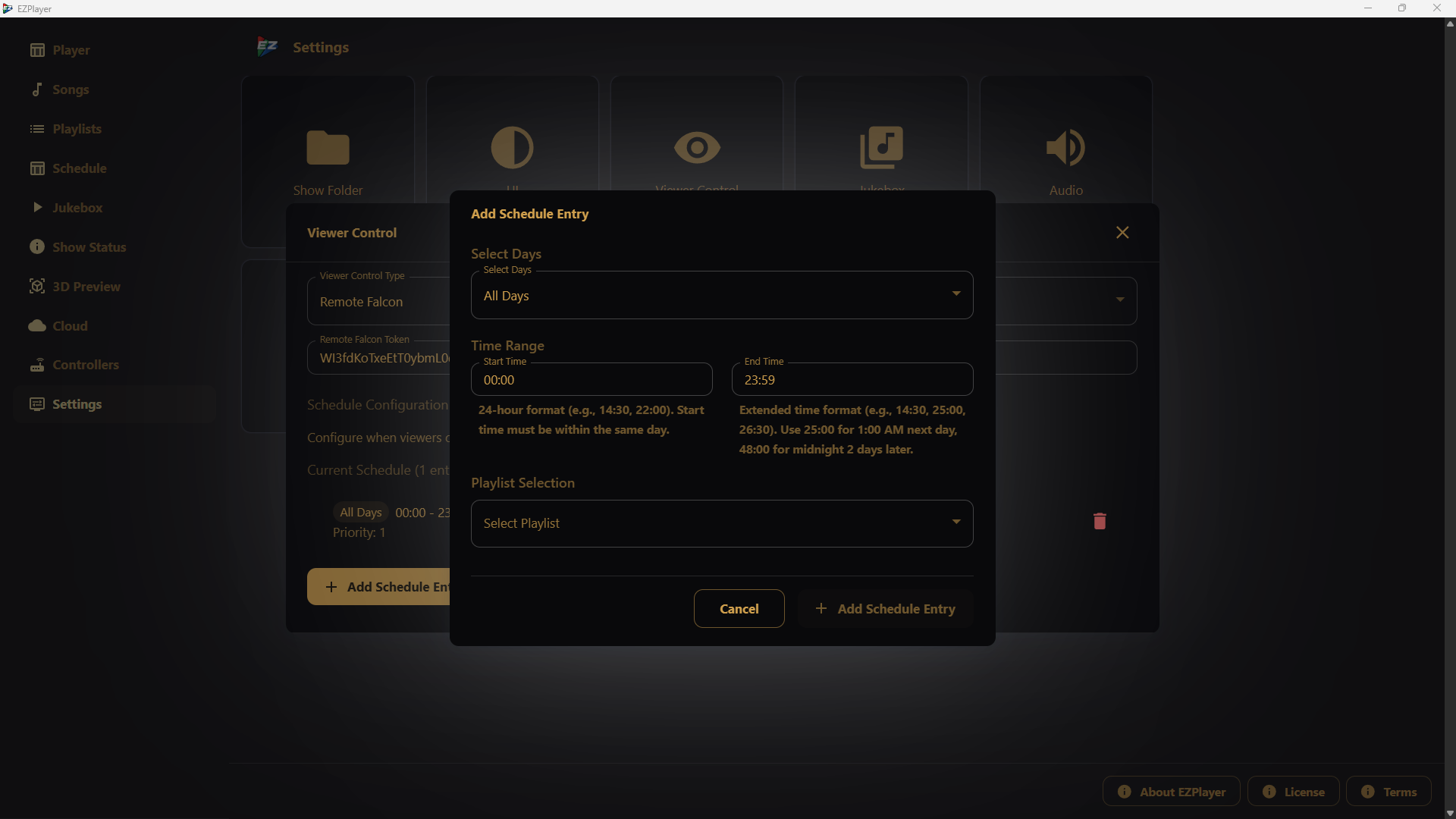
The easiest way to think about these settings is:
Schedule = WHEN visitors can make requests.
Playlist = WHAT visitors can request.
5. Test Remote Falcon with EZPlayer
With everything connected, it's time to see if Remote Falcon with EZPlayer actually works.
Head back to your Remote Falcon dashboard and give it a moment to update. You should see your active sequences listed. From there, select View Public Page to open the same page your visitors will see when they access your show from their phones.
Your available songs should now appear on the page. Select one just as a visitor would and submit the request. In our test, we selected Jingle Bells Batman Smells, and Remote Falcon immediately added it to the queue.
EZPlayer receives the request while continuing to play the current sequence. Once that sequence finishes, it checks Remote Falcon for the next request and begins playing the selected song.
And just like that, Remote Falcon is controlling song requests through EZPlayer.
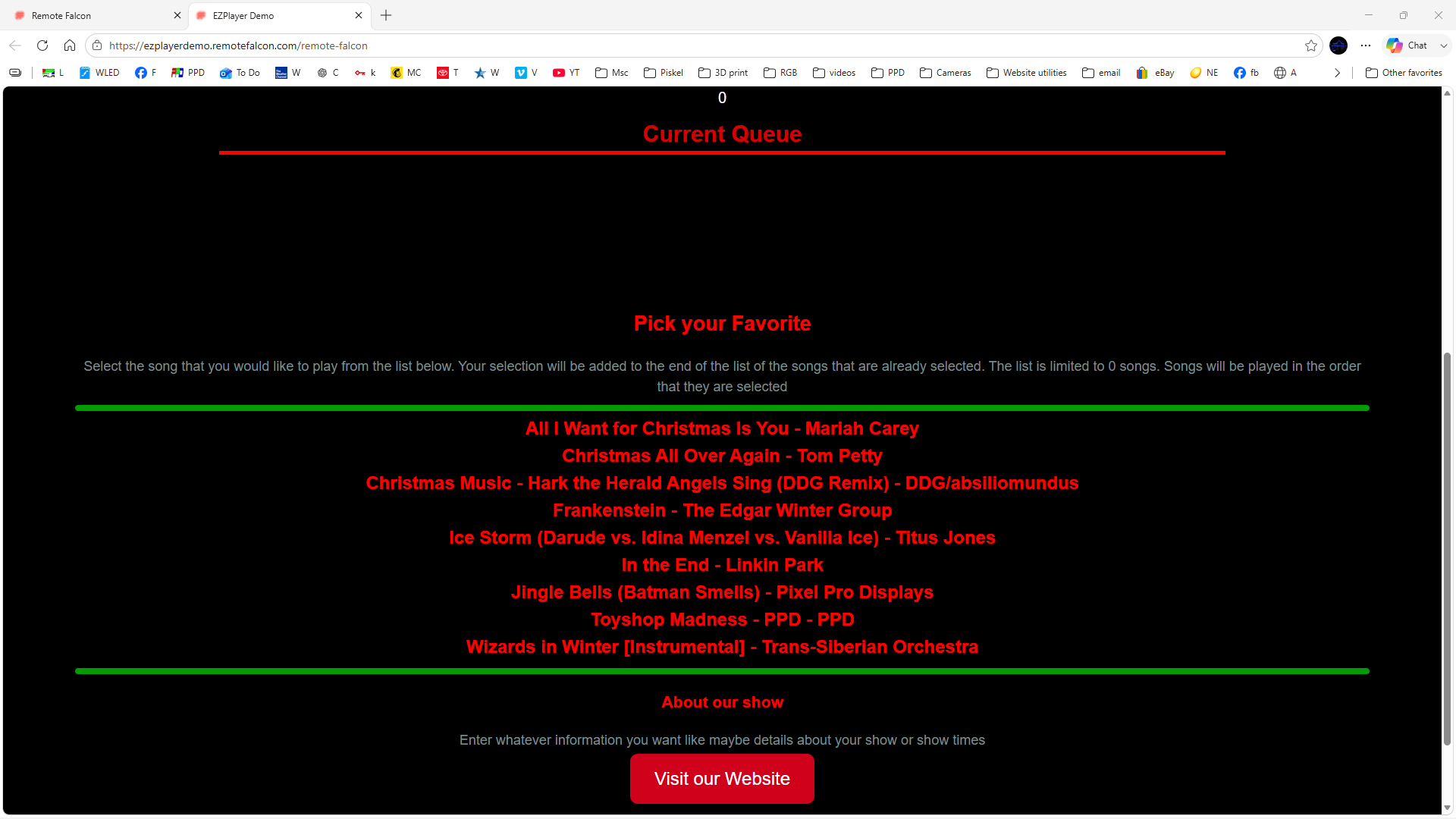
Before using it during an actual show, try several requests yourself. Test the public page from your phone, make sure the correct songs play, and confirm everything works the way you expect from the same perspective as someone visiting your display.
6. A Better Way to Use Your Sequence Library
One of the things I didn't really consider before using Remote Falcon with EZPlayer was how it could change the way I build my nightly playlists.
Over the years, it's easy to collect 20, 30, 40, or even more sequences. But having that many sequences doesn't mean they all need to play every night. You might create shorter playlists for different nights, build themed playlists, or simply limit the number of songs playing to help keep traffic moving through your display.
With Remote Falcon, those other sequences don't have to sit unused. You can keep a larger selection of songs available in EZPlayer and allow visitors to request them through your Remote Falcon page, even when they aren't part of that night's regular rotation.
This gives you the best of both worlds: a shorter, manageable nightly show with a much larger library available for visitors who want to request something different.
That's something I hadn't really considered before trying Remote Falcon. After seeing how easily it worked with EZPlayer, it's definitely a feature I'm considering adding to my own holiday light show.
Continue Learning
EZPlayer for xLights - Learn more about setting up and running our xLights show with EZPlayer
How to Build Your First Pixel Controller - Working on your show hardware? Follow our Beginner-friendly controller build guide
Controller Output Labels: Methods and Organization - See the labeling methods we've learned through years of display building
DIY Pixel Mini Mega Tree and Star - Build our inexpensive 200 pixel Mini Mega Tree with Star.